iCloud vs Google Photos vs Local Storage: Which Photo Backup Method Is Actually Best?
You take hundreds — maybe thousands — of photos every year, and at some point the anxiety sets in: where are they actually being stored, and what happens if something goes wrong? Finding the best way to backup photos is one of those decisions most people put off until it's too late, only to discover that a crashed phone or an expired subscription wiped out years of irreplaceable memories.
The three most common approaches are iCloud, Google Photos, and local storage — each with its own set of trade-offs around cost, privacy, accessibility, and long-term reliability. This guide breaks down all three in depth so you can make an informed choice rather than just defaulting to whatever your phone suggested during setup.
iCloud Photos In-Depth
iCloud Photos is Apple's native cloud backup service, built directly into iOS, macOS, and iPadOS. When enabled, every photo and video you take is automatically uploaded to Apple's servers and synced across all your Apple devices — seamlessly and in the background.
Storage tiers (as of 2026):
- 5 GB — Free (shared with all iCloud data)
- 50 GB — $0.99/month
- 200 GB — $2.99/month
- 2 TB — $9.99/month
- 6 TB — $29.99/month
- 12 TB — $59.99/month
The free 5 GB tier fills up almost instantly for most users. A single minute of 4K video can be 350 MB or more, meaning the free tier runs out after roughly 14 minutes of footage. In practice, nearly all iPhone users end up paying within months of owning a device.
What iCloud does well: The integration with Apple's ecosystem is genuinely seamless. Photos appear on your Mac, iPad, and iPhone within seconds of being taken. The "Optimize Storage" feature keeps full-resolution originals in the cloud while storing smaller versions on-device, preserving local storage space. Face recognition, scene detection, and the Memories feature all work across devices without any manual effort.
The key risk with iCloud: Your photos exist primarily in Apple's ecosystem. If you cancel your subscription and your storage is over the free 5 GB limit, Apple gives you a grace period — but eventually access gets restricted. You can download your library via iCloud.com, but the export process can be cumbersome for large libraries. You are also entirely dependent on Apple's infrastructure, pricing decisions, and continued existence of the service.
Who iCloud is best for: Users fully committed to Apple hardware who want effortless syncing across iPhone, Mac, and iPad, and who are comfortable paying a recurring fee for the convenience.
Google Photos In-Depth
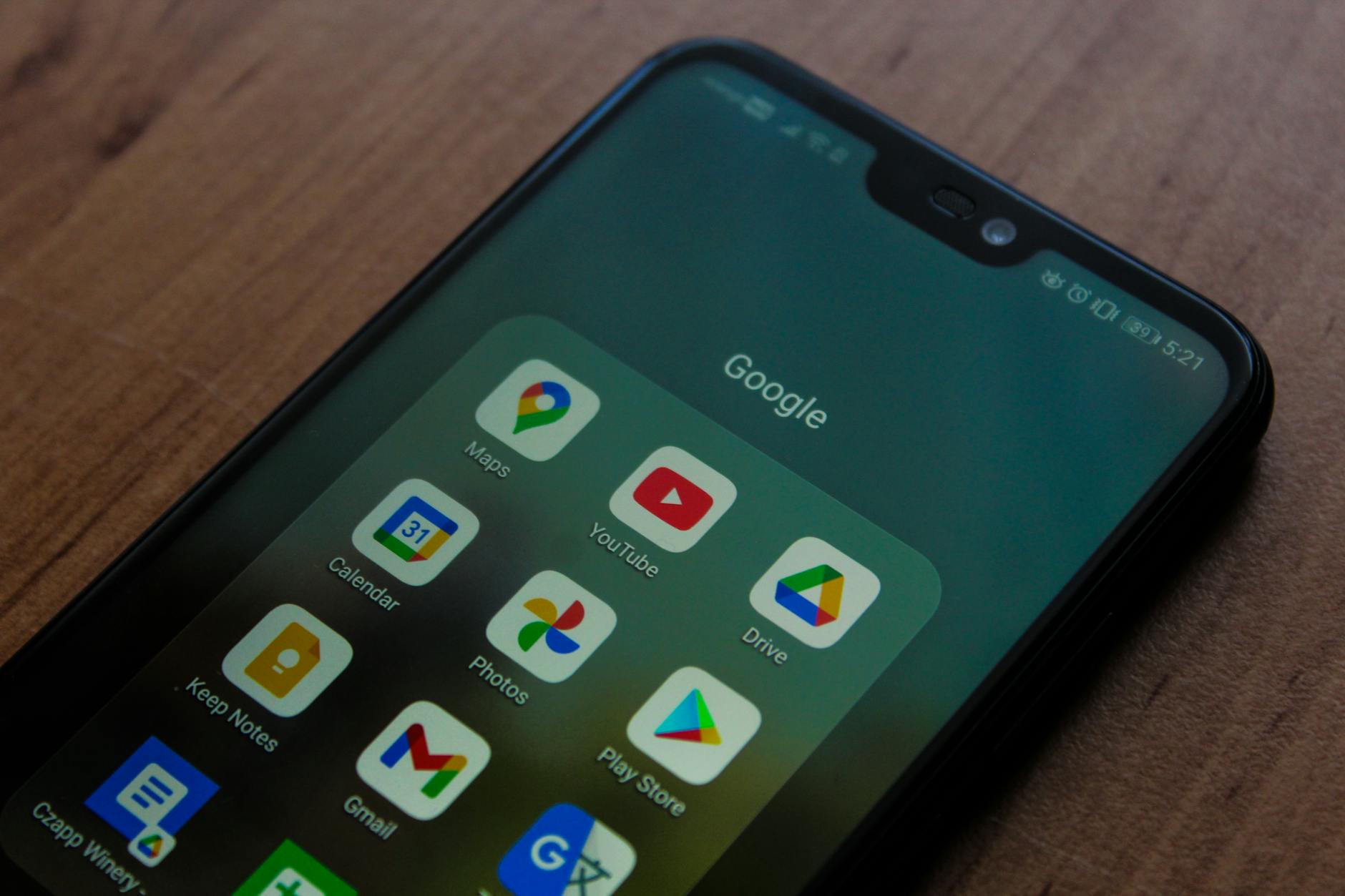
Google Photos is Google's cloud photo storage and management platform. It works on Android, iOS, and the web — making it the most cross-platform of the three options. For years it offered free unlimited storage for "high quality" (compressed) photos, but that changed in June 2021 when Google switched to counting all uploads against free storage limits.
Storage tiers via Google One (as of 2026):
- 15 GB — Free (shared with Gmail and Drive)
- 100 GB — $2.99/month
- 200 GB — $3.99/month
- 2 TB — $9.99/month
- 5 TB — $24.99/month
The 15 GB free tier is meaningfully larger than iCloud's 5 GB, though it is shared with your Gmail inbox and Google Drive files — so heavy email users may find it fills up faster than expected.
What Google Photos does well: Google's AI-powered search is best-in-class. You can search for "beach sunset 2023," "birthday cake," or even a specific person's face and the results are remarkably accurate. The platform also has strong automatic organization, smart albums, and a "cinematic photos" feature that creates subtle motion effects. Google Photos works equally well on Android and iPhone, making it a strong choice for households with mixed devices.
The privacy trade-off: Google's business model is built on data. While Google states that photos are not used for advertising purposes, the company's terms of service give it a broad license to process your images for product improvement and service delivery. Google does apply machine learning to your images to power features like face recognition and content search. For users with privacy concerns, this is a meaningful consideration. Photos are stored encrypted in transit and at rest, but Google holds the encryption keys — meaning Google could theoretically access your images.
What happens when you cancel: If you exceed your storage limit, you can no longer upload new content, but existing photos remain accessible. If you cancel your paid plan and drop below the free 15 GB limit, nothing changes. But if you're over the free limit with no active plan, Google eventually restricts access after a grace period. Downloading your full library via Google Takeout is straightforward, though large libraries can take hours to prepare.
Who Google Photos is best for: Android users who want powerful search and organization, mixed-device households (Android + iPhone), or anyone who values Google's AI features and is comfortable with Google's data practices.
Local Storage In-Depth
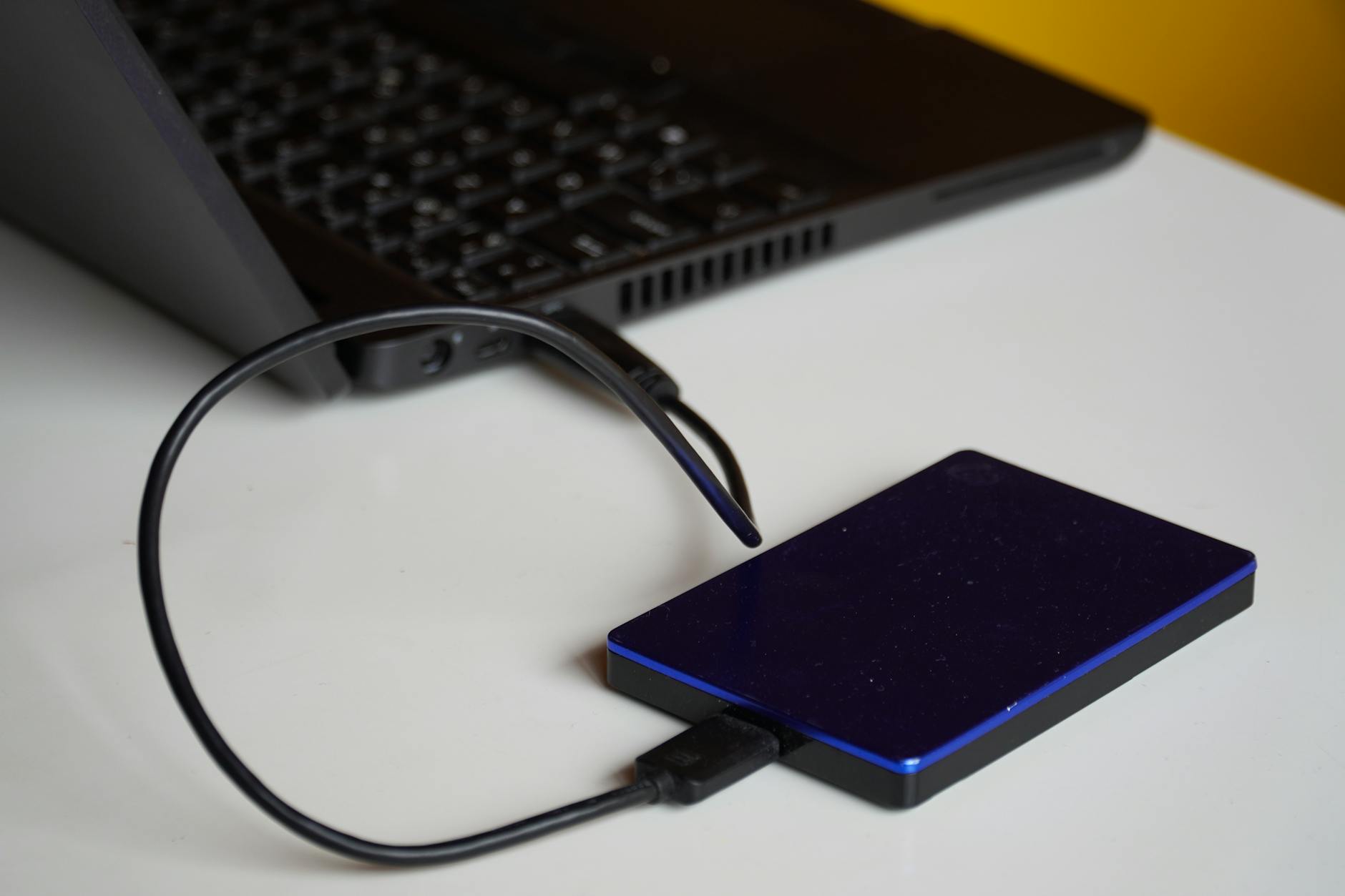
Local storage means keeping your photos on physical hardware you own and control — external hard drives, SSDs, NAS (network-attached storage) devices, USB drives, or simply your computer's internal drive. Unlike cloud services, there are no subscription fees and no third-party servers involved.
Common local storage formats:
- External HDD (hard disk drive): High capacity, low cost per gigabyte, but mechanical parts make them susceptible to drops and vibration. Typical lifespan: 3–5 years.
- External SSD (solid-state drive): Faster, more durable, no moving parts. More expensive per gigabyte, but far better for transport. Typical lifespan: 5–10 years.
- NAS (Network Attached Storage): A home server with multiple drives. Expensive upfront but extremely reliable with RAID configuration. Allows remote access over your home network.
- USB flash drives / SD cards: Convenient for short-term transfers but not recommended for long-term archival storage due to data degradation.
What local storage does well: You own your data outright. No monthly fees, no terms of service changes, no risk of a company discontinuing its service or changing its pricing model. With a proper 3-2-1 backup strategy (three copies of data, on two different media types, with one copy off-site), local storage can be the most resilient backup approach of all. There are also no privacy concerns about third-party access — your photos never leave your control.
The risks of local-only storage: Physical media fails. Hard drives have a finite lifespan, and mechanical drives can fail without warning. Fire, flood, theft, or a simple power surge can wipe out an entire local library in an instant. If you store backups only at home, a single disaster event could destroy everything simultaneously. Local storage also requires active management — you have to remember to back up, verify the backup worked, and periodically replace aging hardware. It does not happen automatically.
Who local storage is best for: Privacy-conscious users, photographers with very large RAW file libraries, people who dislike subscription models, or anyone implementing a professional-grade 3-2-1 backup strategy.
Side-by-Side Comparison Table
| Feature | iCloud Photos | Google Photos | Local Storage |
|---|---|---|---|
| Free Storage | 5 GB | 15 GB | As much as you buy |
| 1 TB Monthly Cost | ~$4.99 | ~$9.99 | $0 (after hardware) |
| Automatic Backup | Yes | Yes | Manual (or scripted) |
| Cross-Platform Access | Apple devices (web access limited) | All platforms | Wherever the drive is |
| Privacy | Good (Apple holds keys) | Mixed (Google processes images) | Complete (no third parties) |
| AI Search & Organization | Good | Excellent | Depends on software |
| Risk of Vendor Lock-in | High (Apple ecosystem) | Medium | None |
| Risk of Physical Loss | None | None | High (if single copy) |
| Ease of Setup | Very Easy | Very Easy | Moderate to Complex |
| Original Quality Preserved | Yes | Yes (original option) | Yes (always) |
Privacy and Security: A Deeper Look

When choosing the best way to backup photos, privacy is a dimension that often gets overlooked until something goes wrong. Here is how the three approaches compare on a technical level.
iCloud: Apple encrypts photos in transit and at rest. With Advanced Data Protection (enabled manually in iOS 16+), iCloud Photos uses end-to-end encryption, meaning even Apple cannot access your images. Without Advanced Data Protection enabled, Apple holds the encryption keys and could theoretically respond to law enforcement requests. Apple's privacy track record is generally strong — the company's business model does not depend on analyzing user content.
Google Photos: Photos are encrypted in transit and at rest, but Google holds the keys. The company uses machine learning to process your images for feature purposes (object detection, face recognition, scene categorization). Google's privacy policy gives it a broad license to use content to improve services. In response to law enforcement requests, Google has a history of complying with valid legal orders. Users in the EU have additional protections under GDPR. For most everyday users, the privacy risk is low — but it is a meaningful trade-off compared to local storage.
Local Storage: No third party has access unless you grant it or your device is physically compromised. This is the most private option by definition. The security risk is different in nature: it shifts from corporate access to physical theft or hardware failure. Encrypting your local drives (using tools like BitLocker or FileVault) adds a meaningful layer of security. If your drive is unencrypted and stolen, your photos are immediately accessible.
5-Year Cost Analysis
One of the most practical ways to evaluate cloud photo storage options is to look at the total cost of ownership over a realistic time horizon. The following scenarios assume a moderate user with roughly 500 GB of photos and videos.
| Scenario | Year 1 | Year 3 | Year 5 Total |
|---|---|---|---|
| iCloud 200 GB ($2.99/mo) | $35.88 | $107.64 | $179.40 |
| iCloud 2 TB ($9.99/mo) | $119.88 | $359.64 | $599.40 |
| Google Photos 100 GB ($2.99/mo) | $35.88 | $107.64 | $179.40 |
| Google Photos 2 TB ($9.99/mo) | $119.88 | $359.64 | $599.40 |
| Local: 2 TB External SSD (one-time) | ~$80–$120 | $0 | ~$80–$120* |
| Local: 2 drives (3-2-1 strategy) | ~$160–$240 | $0–$120 (replace aging drive) | ~$200–$360* |
* Local storage costs assume no drive failure. Factor in replacement costs for drives older than 4–5 years. Prices are estimates and vary by brand/market.
The key insight from this analysis is that local storage has a significantly lower total cost over a five-year horizon — but only if you manage hardware health proactively. Cloud subscriptions, while recurring, offload the maintenance burden entirely.
Which Should You Choose? A Decision Framework
Rather than declaring a single winner, the most honest answer is that the right choice depends on your specific situation. Here is a practical framework for deciding where to store digital photos based on your priorities.
Choose iCloud if:
- You use only Apple devices (iPhone, Mac, iPad)
- Seamless, zero-friction syncing matters more to you than cost
- You want photos to appear on your Mac desktop automatically
- You prefer Apple's privacy approach over Google's
- You already pay for iCloud for other data (contacts, calendar, mail)
Choose Google Photos if:
- You use Android, or have a mix of Android and Apple devices
- You want the best AI-powered search and smart albums
- You want to access your library from any browser on any device
- You share photos frequently with people on different platforms
- You are comfortable with Google's data practices
Choose local storage if:
- Privacy is your top priority and you don't want third-party access
- You have a large RAW photo library (professional photographers)
- You want to avoid ongoing subscription costs
- You are willing to actively manage your backup strategy
- You want to implement a full 3-2-1 backup system
The professional recommendation: Do not rely on a single method. The 3-2-1 rule — three copies, two different media types, one off-site — is the gold standard for long-term photo preservation. In practice, this often means using a cloud service (iCloud or Google Photos) for automated daily backup, plus a local external drive backup at home, plus a second copy stored elsewhere (another drive at a family member's home, or a cold storage service like Backblaze). This approach covers both the convenience of cloud and the security of physical redundancy.
FAQ: iCloud vs Google Photos vs Local Storage
Key Takeaways
After comparing all three approaches across cost, privacy, accessibility, and reliability, here is what the evidence points to when looking for the best way to backup photos:
- iCloud Photos is the best choice for deep Apple ecosystem users who want effortless, zero-configuration syncing — at a price that compounds over time.
- Google Photos leads on AI search, cross-platform compatibility, and smart organization, but comes with a privacy trade-off that users should consciously accept rather than ignore.
- Local storage is the most private and cost-effective long-term option, but it is only reliable when you implement genuine redundancy — a single drive is not a backup.
- No single method is sufficient on its own. The gold standard is the 3-2-1 strategy: three copies, two media types, one off-site. Combining a cloud service with at least one local backup covers both convenience and resilience.
- When it comes to comparing icloud vs google photos, neither is universally better — the right choice depends on your device ecosystem, privacy preferences, and how much you value AI-powered organization.
The worst outcome is not a wrong choice between these three options — it is having no reliable backup at all. Whatever combination you choose, set it up today rather than after the loss has already happened.